
Patients whose care provider has elected to allow them to schedule appointments will see a Make an Appointment option in the Main menu.
Click this option once to pull up the Make an Appointment screen.
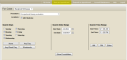
The options presented here are based on what your care provider has made available to schedule through associated procedures. That is, any appointments that you schedule must be based on procedures that they have made available to Portal users.
For Case: Verify that your Case ID corresponds to the information your care provider has given you for scheduling. If not, click the drop-down and choose the correct one.
Care providers have the option of creating a separate case for each occurrence of treatment you may receive. For example, you may receive treatment for injuries sustained in car accident and then go back to the same provider for a sports injury. It is necessary that you choose the correct case in such instances.
Procedure: Click the drop-down and choose the procedure for which you are seeking an appointment.
Locations: Choose the location where you want to go for your appointment: Simply click the checkbox next to the desired locations.

The previous example shows that of two possible locations, the patient only wants to schedule in ABC Medicine (SpectraTherapy is unchecked).
Search Days: Specify the days of the week on which you would like to schedule. Check and uncheck days as needed. Alternatively, use the buttons to quickly choose or de-select days.
Search Date Range: The date range defaults to a two-week period beginning with Today's date. Edit the End Date as needed.
Search Time Range: Choose the time of day for which you would like to find an appointment. Click the hour or minute fields and enter the time manually or select AM/PM. Click Either to restore the default.
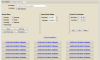
As soon as you click the desired appointment, the Schedule an Appointment screen will appear. Following the Help instructions provided on that screen to complete the appointment.

Alternatively, do as instructed and call your care provider.
Copyright © 2014 Mediware® Information Systems, Inc.